
OpenWebRX+ Frequency Tuning
OpenWebRX+ offers several convenient ways to tune to your frequency using the mouse and keyboard.
Receiver Panel Tuning Controls
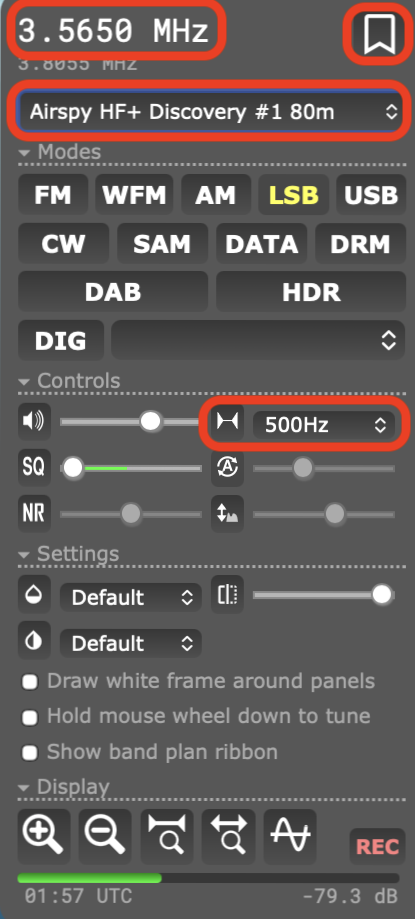
The four tuning controls on the Receiver Panel are the frequency display, add bookmark button, profile selection drop-down and tuning step drop-down menus.
Direct Frequency Entry
The frequency display and editing controls are on the top of the Receiver Panel.

The top line shows the currently selected frequency and a Bookmarks button. The line below it (dimmed in the image) is the frequency pointed to by the mouse cursor on the waterfall display.
The tuned frequency can be manually edited in several ways. Hovering the cursor over a digit of the selected frequency and scrolling with the mouse scroll wheel will change that digit. Clicking on the frequency in box will enable manual frequency entry with the keyboard.
Using the Mouse
The mouse provides a number of methods for quickly tuning across the current profile.
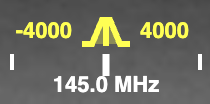
The currently tuned frequency is shown by the Frequency Icon on the Frequency Scale Header. The bandwidth is indicated by the numbers on either side of the icon.
Tuning with the mouse can be done in a number of ways:
- clicking on the Waterfall
- clickong on the Frequency Scale Header
- hovering the mouse over either the Waterfall or Frequency Scale Header and scrolling with the mouse wheel
Note: hovering over the Frequency Icon itself and scrolling the mouse wheel will change the bandwidth rather than the frequency.
Profile Selection
The profiles will be set up for different bands or areas of the spectrum of special interest.

The profiles are selected using the Profile Selection drop-down menu on the Receiver Panel.
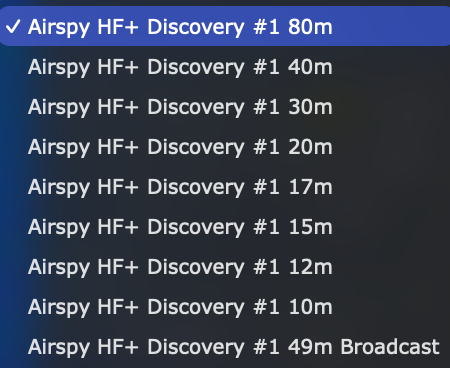
The drop-down menu displays all of the currently active profiles.
Keep in mind that changing the profile will re-tune the SDR for any users currently connected to this OpenWebRX+ server.
Tuning Buttons

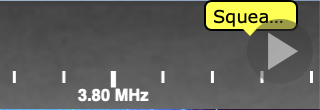
Clicking on the triangular Tuning Step Buttons on either side of the Frequency Scale Header will adjust the frequency by the currently selected tuning step.
Adjusting the tuning step setting appropriately will help make precise frequency adjustments.
Tuning Step Selection
The tuning step can be adjusted by using the drop-down Tuning Step selection menu. Tuning steps go from 1Hz to 50kHz. Setting an appropriate tuning step makes for convenient and precise tuning methods.
The menu is found on the Receiver Panel.
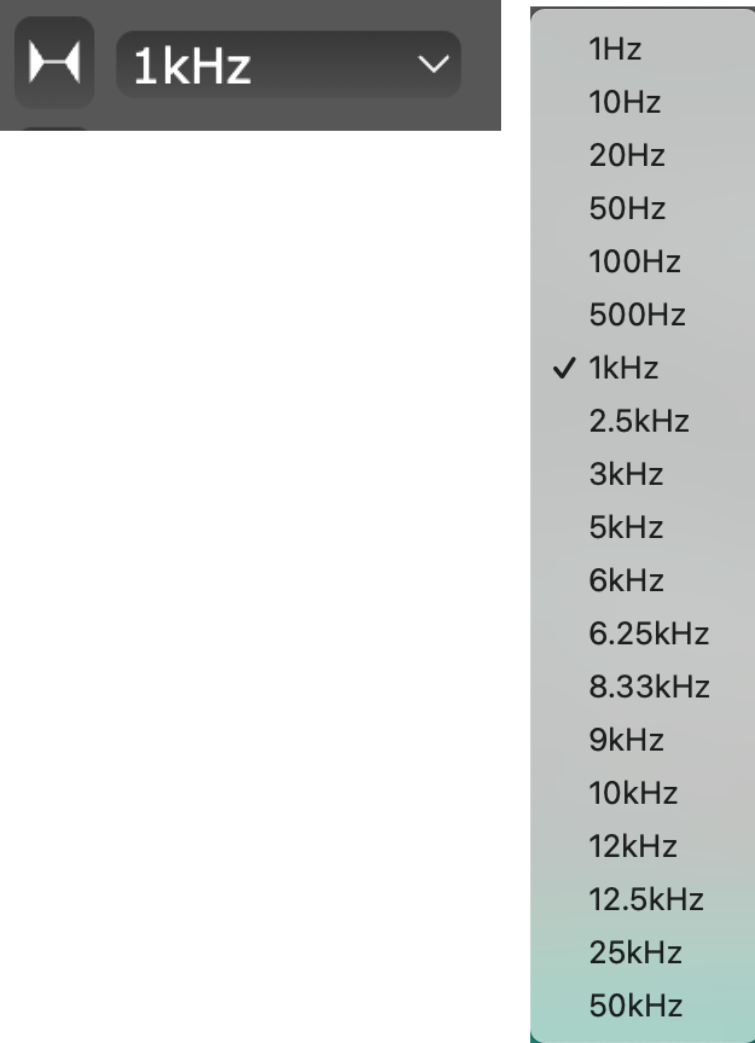
Here a 1kHz tuning step is selected. Clicking on the Set to Default button will set the tuning step to the default of 1Hz.
Using Bookmarks
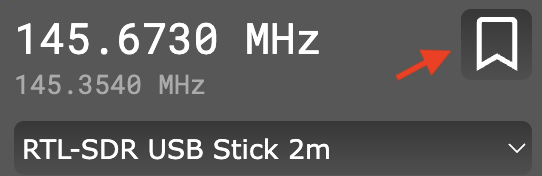
Bookmarks are a convenient way to quickly tune to a saved frequency.
To create a new bookmark, click on the New Bookmark icon indicated by the red arrow and a bookmark edit window will pop-up. The frequency and modulation type will be auto-filled with the currently selected frequency and analog or digital mode (Modulation). Any of the fields can be edited.
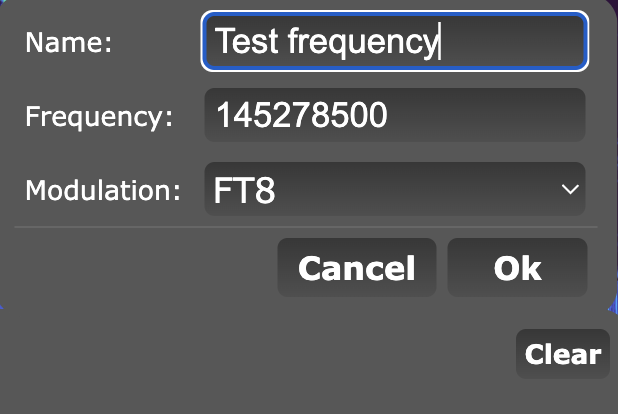
Bookmarks created by users this way will be blue and are saved by the user's browser.