KiwiSDR Control Panel
The KiwiSDR Control Panel
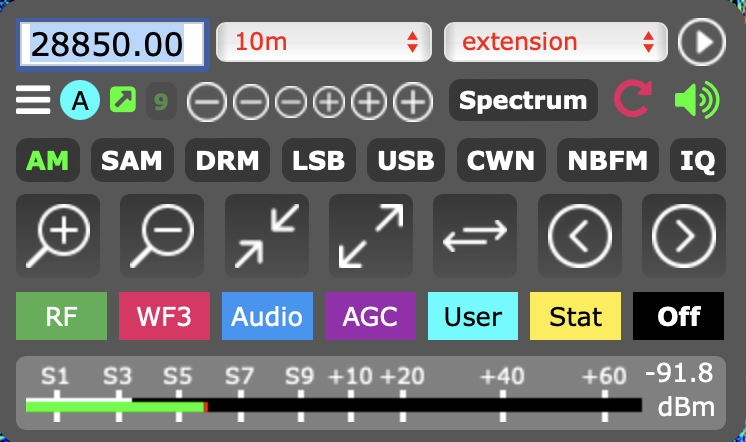
The Control Panel has 6 rows of buttons and controls that are described below.
Information on the KiwiSDR User Interface
KiwiSDR (at kiwisdr.com)
🔗 KiwiSDR User Interface
Because the panel is so densely populated it can take a while to get used to all the controls on the panel. But most of what is needed for casual operation is right there.
Frequency & Extensions

Use these menus to enter frequencies manually, jump to pre-defined amateur bands, or launch digital decoders (FAX, FT4/FT8, SSTV).
ⓘ Info Panel Extensionsⓘ Decoder Extensions
Tuning & Recording

Advanced tuning functions including VFO A/B selection, URL sharing, spectrum panel toggles, recording start/stop, and muting.
ⓘ A Brief KiwiSDR Tuning GuideAudio Modes

Quick-select buttons for the most common audio modes. Clicking these instantly updates your filter and signal processing.
ⓘ KiwiSDR Audio ModesWaterfall Controls

Controls to adjust the zoom level and scroll speed of your waterfall. Useful for isolating weak signals from noise.
Info Panels

Opens specific informational panels to view additional data, system logs, or user information.
ⓘ KiwiSDR Info PanelsS-Meter

The signal level meter. It provides a visual representation of the received signal strength currently under your tuning cursor.
Wikipedia S-meter article 🔗 S Meter